 how-to guide
How to Extend Battery Life: 10 Proven Tips
Table of Contents
- How to Extend Battery Life: Start With Screen Settings
- Optimize Battery Settings to Maximize Device Runtime
- Manage Background Apps and Processes
- Charging Habits for Battery Longevity: The 20-80 Rule
- Disable Unnecessary Connectivity Features
- Battery Health Tips: Monitor Usage and Keep Software Current
- Save Battery Life Android: Reduce Notifications and Animations
- Common Myths About Battery Life and Charging
- Frequently Asked Questions
Last Updated: August 2, 2026
Learning how to extend battery life is one of the most practical skills any device owner can develop. A smartphone or laptop that drains by mid-afternoon forces you to hunt for chargers constantly and disrupts your workflow. At Bigtime Battery, we've helped countless customers understand that battery longevity isn't about luck, it's about deliberate choices across screen settings, app management, charging habits, and software maintenance. Below are 10 proven strategies that work across Android, iOS, and other devices. These aren't theoretical tips; they're actionable changes that typically add 4-8 hours of runtime to most devices.
How to Extend Battery Life: Start With Screen Settings
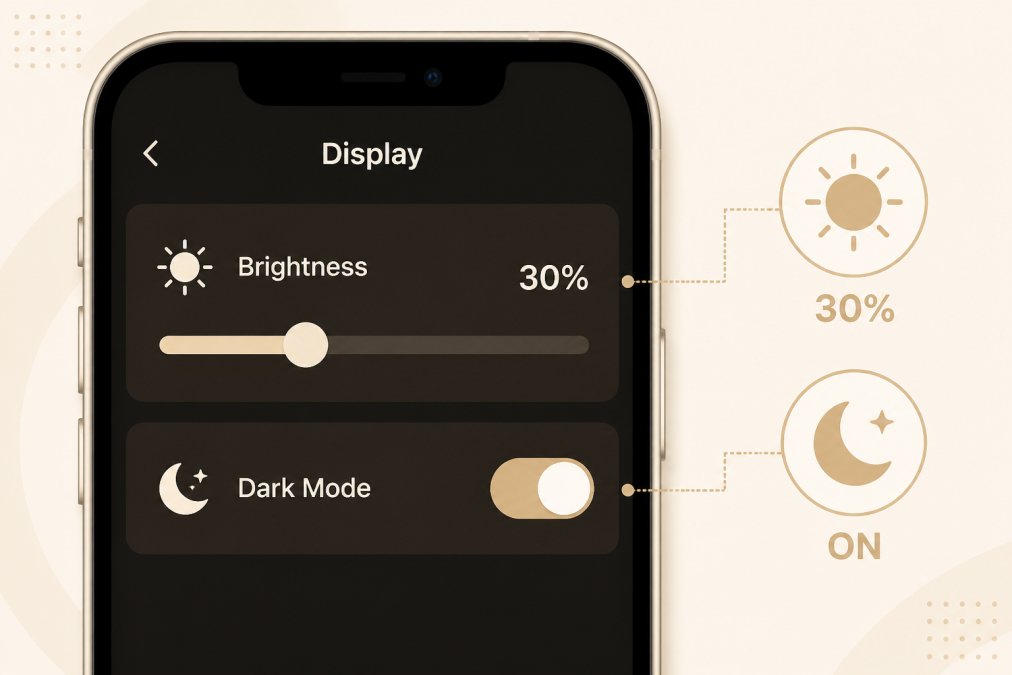
Your display is the single largest power consumer on modern devices, accounting for 20-40% of total battery drain. Reducing screen brightness and setting appropriate timeouts are the fastest ways to extend battery life without sacrificing usability.
Reduce Screen Brightness and Set Auto-Timeout
Lower your brightness to 40-60% of maximum and set your screen timeout to 30-60 seconds. In indoor environments, 50% brightness is perfectly adequate and nearly doubles runtime before depletion. Auto-timeout automatically locks your display when inactive, dropping battery drain to near-zero.
Enable adaptive brightness if your device offers it, but disable it if you notice erratic behavior. Some implementations are overly aggressive, making manual control more efficient.
Enable Dark Mode on OLED Displays
Dark mode meaningfully extends battery life only on OLED displays, which emit their own light. Displaying black literally turns off those pixels entirely, creating direct battery savings proportional to black content displayed. On LCD displays, dark mode provides minimal benefit because the backlight stays on regardless of color.
If you own an OLED device, enabling dark mode across your operating system, apps, and wallpapers can extend battery life by 15-25% in typical use. Use a pure black wallpaper (RGB 0, 0, 0) rather than dark gray.
Optimize Battery Settings to Maximize Device Runtime
Modern operating systems include battery optimization features designed to extend battery life during heavy use. Power-saving modes reduce performance, limit background activity, and disable non-essential features.
Turn On Power-Saving Mode and Low Power Mode
iOS devices call this "Low Power Mode"; Android devices typically use "Battery Saver" or "Power Saving Mode." These modes reduce CPU performance, limit background app refresh, disable location services, and reduce animation smoothness.
Enable Low Power Mode or Battery Saver at 50% battery rather than waiting until 20%. This prevents aggressive drain in the final hours and typically extends total runtime by 3-5 additional hours. Some phones offer tiered power modes; Samsung's "Medium Power Saving" is often the sweet spot, retaining most functionality while gaining significant battery extension.
Disable Adaptive Brightness When Not Needed
Adaptive brightness uses the ambient light sensor to adjust screen brightness automatically. While this improves user experience in variable lighting, it consumes power and can be unpredictable. In controlled environments, manual brightness control is more efficient.
Disable adaptive brightness by navigating to display settings and toggling off "Adaptive Brightness," "Auto-Brightness," or "Adaptive Display." You'll manually adjust brightness as needed while eliminating sensor polling overhead.
Manage Background Apps and Processes
Background app activity is a hidden battery drain that most users don't notice. Apps running in the background consume CPU cycles, access location data, sync data, and wake your screen periodically. Identifying and disabling background activity for non-essential apps can extend battery life by 2-4 hours.
Identify Battery-Draining Apps
Check your battery usage statistics to identify which apps consume the most power. On iOS, navigate to Settings > Battery > Battery Usage. On Android, go to Settings > Battery > Battery Usage or Settings > Apps > Battery Usage.
Look for apps consuming more than 5% of battery in the past 24 hours. Common culprits include social media apps (Facebook, Instagram, TikTok), navigation apps (Google Maps, Waze), and messaging apps with constant syncing.
Disable Background App Refresh and Location Services
Background app refresh allows apps to update content while your device is locked. On iOS, go to Settings > General > Background App Refresh and toggle off apps you don't need updating constantly. On Android, navigate to Settings > Apps > [App Name] > Battery and select "Restricted."
Location services (GPS, Bluetooth location, Wi-Fi location) consume significant power through constant sensor polling. Disable location services globally or on a per-app basis. Maps and navigation apps need location; social media, news, and entertainment apps rarely do. Disabling background refresh and location services typically extends battery life by 2-4 hours.
Charging Habits for Battery Longevity: The 20-80 Rule
Modern lithium-ion batteries degrade over time, but degradation accelerates when you consistently charge to 100% or discharge to 0%. The 20-80 rule, keeping your battery between 20% and 80% charge, is the single most important factor for long-term battery health.
Avoid Overcharging and Deep Discharging
Overcharging (keeping your device plugged in after reaching 100%) and deep discharging (letting battery drop below 10%) both stress lithium-ion cells. If you charge overnight, unplug your device when it reaches 100%. Charge to 80-90% instead of 100% when possible.
Avoid letting your battery drop below 20% regularly. Some newer phones (iPhone 15 and later, certain Samsung models) offer "Optimized Battery Charging" that learns your charging patterns and limits charging to 80% most of the time. Enable this feature if available.
Keep Devices at Moderate Temperatures
Heat is battery kryptonite. Lithium-ion batteries degrade 2-3 times faster at 45°C (113°F) compared to 25°C (77°F). Avoid leaving devices in direct sunlight, in hot cars, or near heat sources while charging. When charging, use a lower-amperage charger if possible. Fast chargers (18W+) generate more heat than standard chargers (5W).
Disable Unnecessary Connectivity Features
Wi-Fi, Bluetooth, GPS, and mobile data all consume power by maintaining active connections and periodically scanning for networks or devices. Disabling connectivity features you're not actively using extends battery life.
Turn Off Wi-Fi, Bluetooth, GPS, and Mobile Data When Not in Use
Wi-Fi and Bluetooth are less power-hungry than cellular radios, but they still drain battery when actively searching. Mobile data (cellular 4G/LTE/5G) consumes more power than Wi-Fi because cellular radios transmit at higher power levels. GPS is the most power-intensive connectivity feature; navigation apps using GPS can drain 20-30% of battery per hour.
On iOS, disable Wi-Fi, Bluetooth, and mobile data through Control Center. On Android, use Quick Settings or toggle airplane mode to disable all radios simultaneously.
Use Airplane Mode in Low-Signal Areas
In areas with poor cellular coverage, your device expends significant power searching for signal. Airplane mode disables all radios, preventing this wasteful searching. If you're in a basement, underground parking, or rural area with no signal, enable airplane mode to extend battery life.
Battery Health Tips: Monitor Usage and Keep Software Current
Battery health degrades predictably over time, but monitoring your battery's actual capacity and keeping your device updated with the latest software can slow degradation and extend battery life significantly.
Check Battery Health Status and Cycle Count
Modern devices provide battery health metrics that show how much capacity your battery has lost. On iOS, go to Settings > Battery > Battery Health & Charging. The "Maximum Capacity" percentage shows how much charge your battery can hold compared to when new. A battery at 80% maximum capacity still functions well, but you'll notice reduced runtime.
On Android, battery health information is less standardized, but some phones (Samsung, Google Pixel) provide it in settings. Cycle count measures how many times your battery has been charged from 0-100%. A typical lithium-ion battery retains 80% capacity after 500 cycles.
Install Software Updates Promptly
Operating system updates frequently include battery optimizations and improvements to the battery management system. Apple and Google release updates that improve how devices manage power consumption and thermal stress. Install software updates within a week of their release.
Save Battery Life Android: Reduce Notifications and Animations
Notifications and system animations contribute to battery drain by waking your device, lighting the screen, and triggering app activity. Reducing unnecessary notifications and disabling animations can extend battery life by 1-2 hours.
Manage App Notifications and Disable System Animations
Disabling notifications from low-priority apps prevents interruptions that wake your screen and trigger app activity. Go to Settings > Apps > [App Name] > Notifications and disable notifications for apps that don't require them.
System animations consume GPU resources and battery. On iOS, go to Settings > Accessibility > Display & Text Size > Reduce Motion and enable it. On Android, go to Settings > Developer Options > Animation Scale and set it to 0 or 0.5x.
Remove Live Wallpapers and Disable Widgets
Live wallpapers (animated backgrounds) run continuously, consuming CPU and battery constantly. Static wallpapers consume no battery. Widgets update periodically, triggering background app activity. Remove widgets you don't check regularly.
Common Myths About Battery Life and Charging
Misconceptions about battery charging persist despite decades of lithium-ion battery research. Understanding what actually affects battery health helps you make informed decisions.
Myth: You Must Fully Drain Your Battery Before Charging
This myth originated from nickel-cadmium batteries used in older devices. Modern lithium-ion batteries don't have memory effect. Partial discharges followed by partial charges actually extend battery lifespan compared to full discharge-recharge cycles. Fully draining your battery to 0% regularly damages lithium-ion cells.
Myth: Closing Apps Saves Battery
Manually closing apps from the multitasking menu doesn't save battery. Modern operating systems suspend apps automatically when you switch away from them. The exception is apps that explicitly request location access or continuous background activity.
Myth: All Chargers Are Equally Safe for Battery Health
Charger quality affects battery health significantly. Low-quality chargers with poor voltage regulation can damage battery cells. Use official chargers or certified third-party chargers from reputable manufacturers. Fast chargers (18W+) generate more heat and stress batteries slightly more than standard chargers.
Extending battery life requires attention to multiple factors simultaneously. Screen brightness, background apps, charging habits, connectivity settings, and software updates each contribute to overall battery performance and health. The strategies outlined above are proven to add hours to your device's runtime and months to its lifespan.
Bigtime Battery specializes in replacement batteries and power solutions for devices across every category, from smartphones to medical devices to marine equipment. If your device's battery is degraded beyond recovery, Bigtime Battery offers high-quality replacement batteries with fast shipping and reliable performance. Our wide selection ensures you find the exact battery your device needs, and our competitive pricing makes replacement affordable when optimization alone isn't enough.
Frequently Asked Questions
What drains phone battery the most?
Screen brightness is the single largest battery drain on most devices, consuming 20-40% of battery power. Background apps, location services (GPS), and connectivity features (Wi-Fi, Bluetooth, cellular network) are secondary drains. Specific apps like video streaming, mapping, and social media platforms consume significant power. Disabling unnecessary connectivity and reducing screen brightness extends battery life most effectively. High screen refresh rates on gaming or media-heavy apps also accelerate battery drain significantly.
Is it better to charge your phone at 80% following the 20-80 rule?
Yes, the 20-80 charging habit extends battery longevity. Lithium-ion batteries degrade faster when fully charged (100%) or deeply discharged (0%). Keeping charge levels between 20-80% reduces charge cycles and thermal stress on the battery. This practice extends the battery's lifespan by months or years. However, occasional full charges are necessary for battery management systems to calibrate correctly. For daily use, aim for 20-80 charging; for long-term device storage, maintain a 50% charge level to minimize degradation.
How do I keep my battery healthy and extend its lifespan?
Battery health depends on three factors: charging habits, temperature control, and software updates. Adopt the 20-80 charging rule to reduce charge cycles. Keep devices between 50-95 degrees Fahrenheit to prevent thermal stress. Install software updates promptly, as they often include battery optimization improvements. Monitor battery health status through device settings to track capacity degradation. Avoid leaving devices plugged in overnight or in direct sunlight. Using the correct power adapter and avoiding extreme temperatures preserves battery chemistry integrity and extends overall lifespan significantly.
Does dark mode actually save battery life on all devices?
Dark mode saves battery only on OLED screens, which turn off pixels displaying black. This reduces power consumption by 3-10% depending on screen usage. LCD and LED displays use backlighting regardless of color, so dark mode provides minimal or no battery savings on these screens. Check your device type: most modern smartphones use OLED, while older devices and tablets may use LCD. If your device has OLED, enable dark mode to extend battery life. Combined with reduced screen brightness, dark mode can meaningfully improve device runtime throughout the day.